Published On: November 22, 2025 | Last Updated: November 26, 2025
Estimated Reading Time: 8 mins
Gmail Security Authentication Setup Guide: Guarantee Steps I Followed (E.E.A.T. GUIDE)
Why I Stopped Relying on SMS Codes
“Imagine this: Your entire digital business—your affiliate link payouts, your client communications, your hosting renewal passwords and similar others —are locked away, held hostage by a single, defunct phone number. Your heart pounds. Panic sets in. You realize that your entire livelihood is hanging by a thread of a simple, easily compromised text message.”
This was my reality just days ago. I’m Kehinde, and after a catastrophic lockout incident where I was temporarily blocked from my most critical asset—my Google Workspace/Gmail account—I realized that the standard security advice is outdated and dangerous. I was using the classic SMS (text message) 2-Step Verification, and it failed spectacularly.
The hard truth is simple: SMS authentication is a security liability. It’s vulnerable to SIM-swap attacks, unreliable when traveling, and a nightmare if you lose your device or use a temporary number (as I regrettably discovered).
In this definitive E.E.A.T. guide, I’m sharing the guarantee steps I followed to ditch SMS forever and set up the Google Authenticator App. This method gives you unbreakable, location-independent access and is the foundation for securing your entire digital enterprise. If you manage a website, other digital communication needs, run affiliate marketing, or handle client data, this guide is non-negotiable.
Secure your digital future, starting right now. Let’s Explore,
Guarantee Step 1: Acquiring the Google Authenticator App (Screenshots Included)
The first, non-negotiable step is getting the secure tool required for the job. Do not skip this!
A. Pre-Checklist: Why the Authenticator App is Non-Negotiable
Decouples Security: Unlike SMS (which relies on your cellular provider), this app works offline and relies only on your phone and a secret key.
Prevents SIM Swap Attacks: If a criminal copies your SIM, they still cannot access your codes.
B. Screenshot Walkthrough: Downloading the Tool (The Proven Steps)
Follow these simple steps to acquire the necessary tool.
We are using the Google Play Store here, but the steps are identical on the Apple App Store.
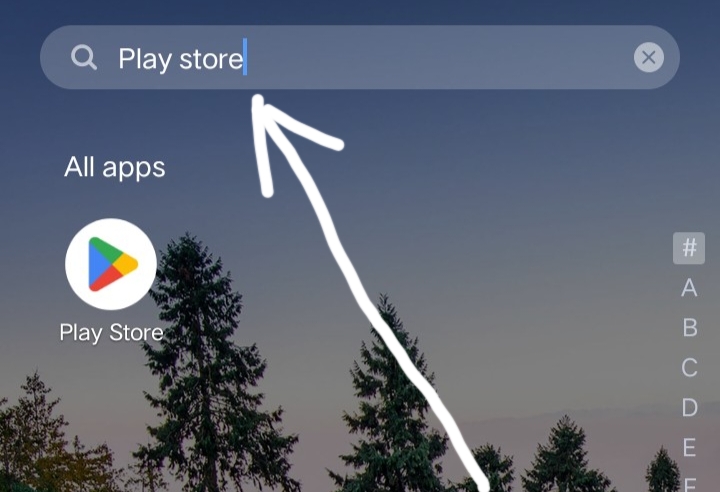
Step 1: Locate and Open Your App Store
Locate the Google Play Store App (or the Apple App Store icon) on your mobile device.
Click the icon to open the store. As seen in the screenshot below
Step 2: Access the Search Function
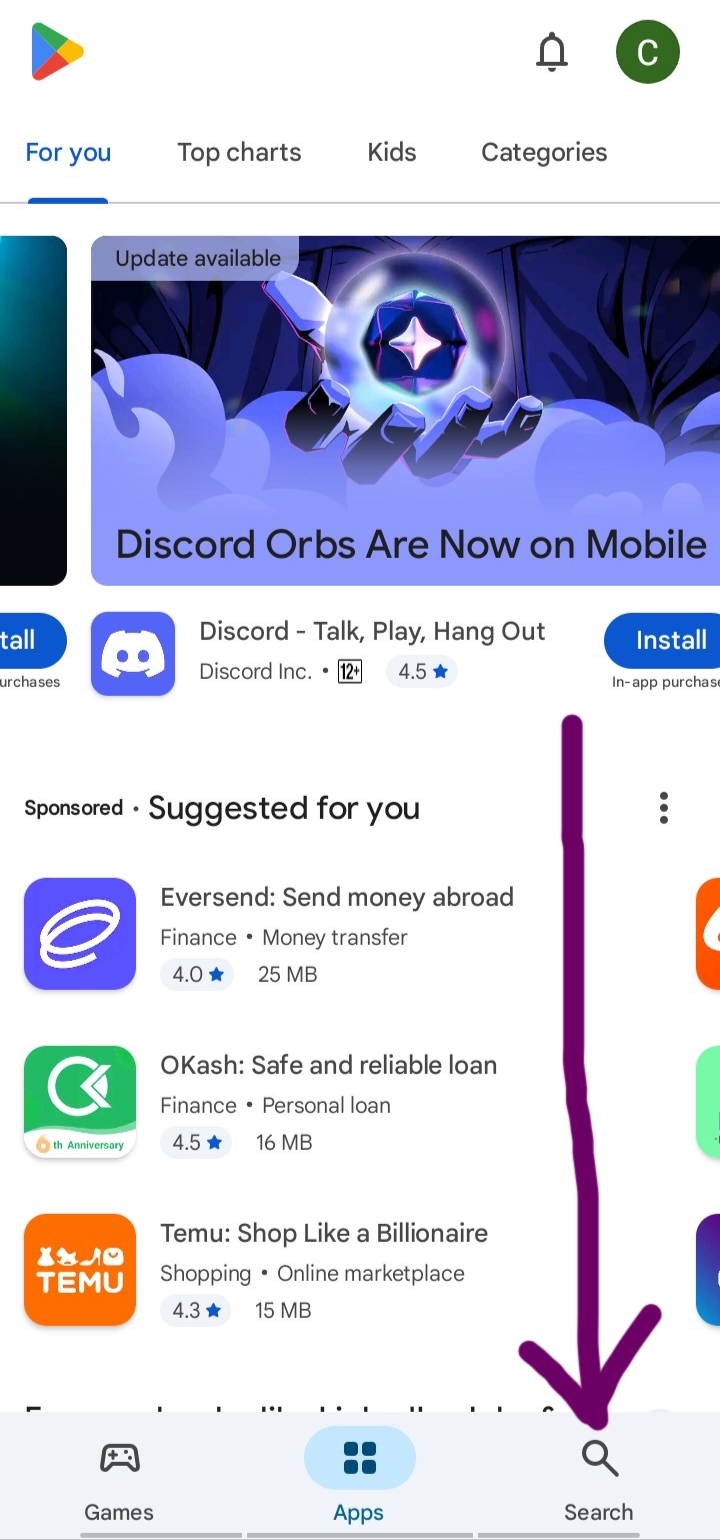
Once inside the Play Store, look for the Search field at the top of the screen (it often looks like a magnifying glass or a search bar).
Tap on the Search function. As seen on the screenshot below
Step 3: Search for the Exact App Name
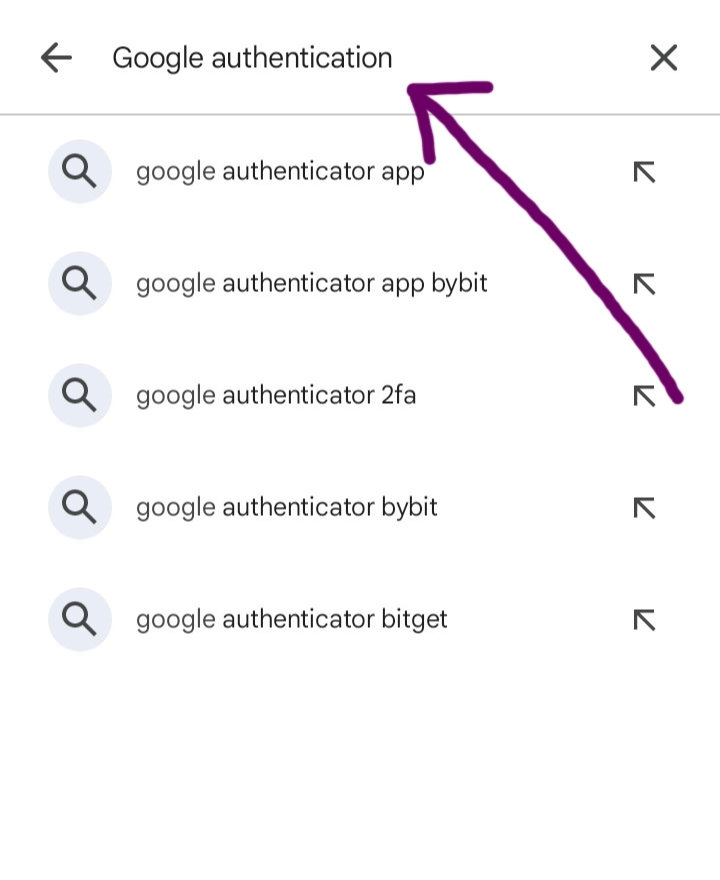
Type the full and correct name: “Google Authenticator” into the search field.
Press Enter or select the search result that matches the official App. As seen on the screenshot below
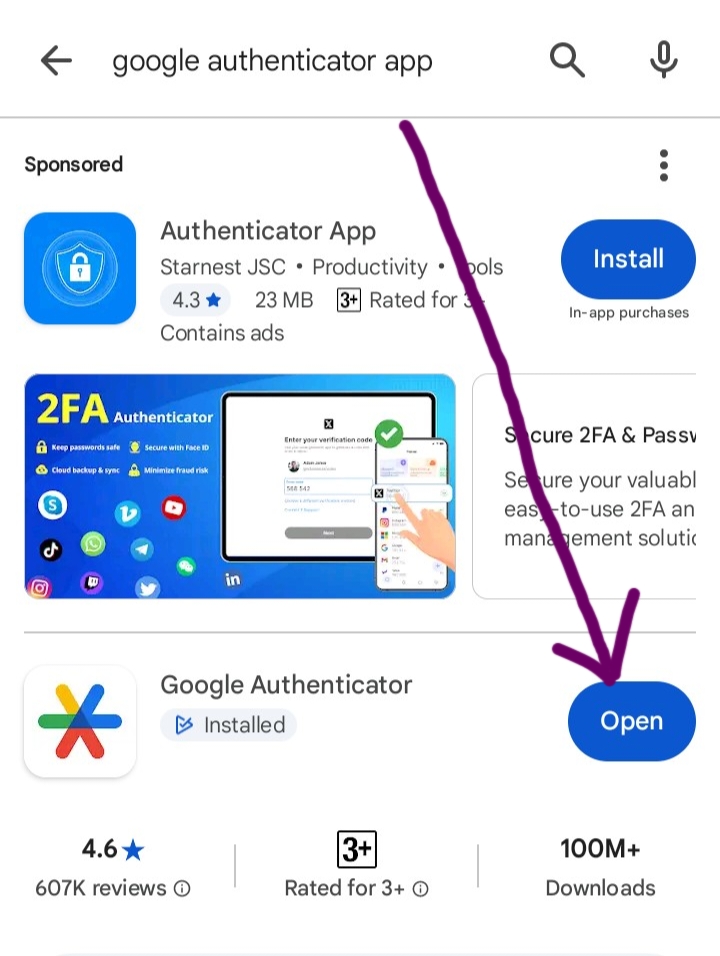
Step 4: Download and Install the App
You will see the official “Google Authenticator” App in the results.
In my case, the button shows “Open” because I already have it downloaded (as shown in the screenshot).
Your Action: Click the “Install” or “Download” button. Follow the on-screen prompts to complete the installation.
Guarantee Step 2: Linking the App to Your Gmail Account (The Final Security Lock)
You have the tool—now it’s time to forge the unbreakable link between your Google account and the Google Authenticator App. This is the most crucial part of the entire process.
A. Pre-Check: Enabling 2FA First
Ensure you have already enabled 2-Step Verification (2FA) on your Google Account, even if it’s currently using SMS. This process replaces the SMS method.
Follow these 9 guarantee steps to fully secure your Gmail using the Authenticator App:
Steps 1-3: Accessing the Security Menu
A. Open your Gmail App and look for your Profile Icon (the circle with your initial) in the top right corner. As seen in the screenshot-1 below
![Gmail 2FA Setup Steps: The Proven Security I Use [E.E.A.T. Guide]](https://ccndigit.com/wp-content/uploads/2025/11/IMG_20251113_091715.jpg)
B. Click the Profile Icon and select “Manage your Google Account.” as sewn in the screenshot below
![Gmail 2FA Setup Steps: The Proven Security I Use [E.E.A.T. Guide]](https://ccndigit.com/wp-content/uploads/2025/11/IMG_20251113_092036.jpg)
C. Navigate to the “Security” tab at the top of the screen. As seen in the screenshot-3 below
![Gmail 2FA Setup Steps: The Proven Security I Use [E.E.A.T. Guide]](https://ccndigit.com/wp-content/uploads/2025/11/IMG_20251112_082105.jpg)
Step 4: Locating the Authenticator Option
Under the “Signing in to Google” section, find and click the “Authenticator App” button. (It may be listed under 2-Step Verification). As seen in the below screenshot

Step 5: Verification and Proceeding
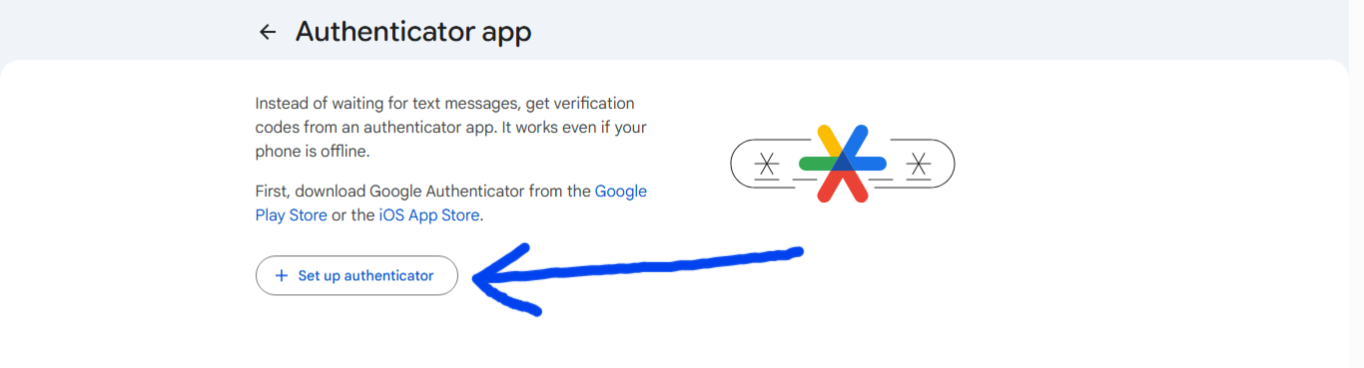
Google will first ask you to verify your identity using your pattern, PIN, or password. Complete the verification.
Once verified, click the “Set up Authenticator” button to begin the linking process. As seen in the below screenshot
Step 6: Choosing the Manual Key Method (CRITICAL)
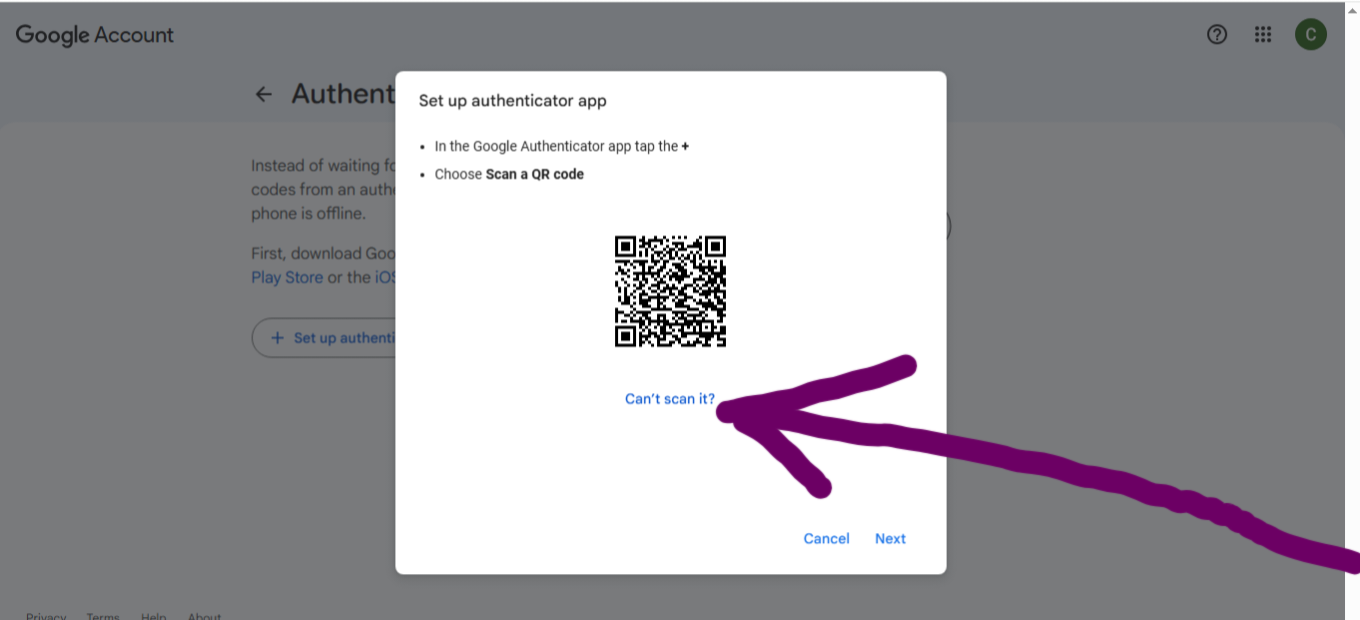
The next screen will typically show a QR code. Since you are setting this up on the same mobile device, you cannot scan the code.
Click the “Can’t scan it?” or “Enter a setup key” option (usually a phrase with a plus sign). As seen in the screenshot below
Step 7: Copying the Secret Key
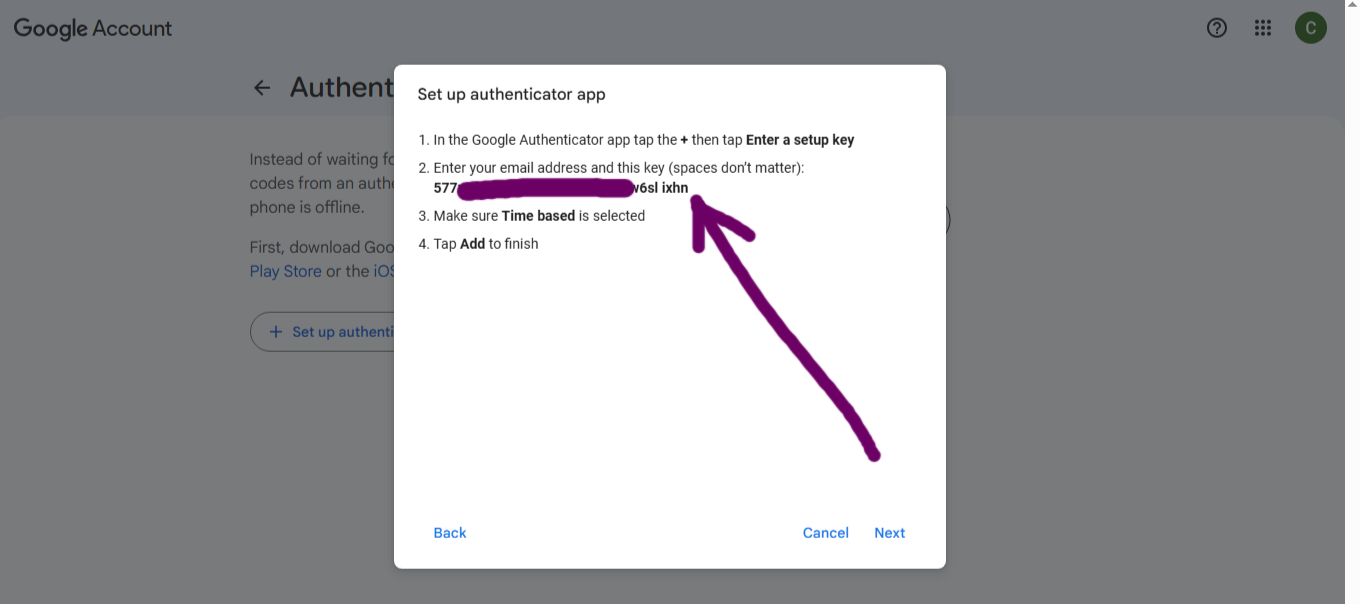
Google will now display a long sequence of characters called the “Your key” or “Secret Key.”
Copy this key. As seen in the below screenshot
Step 8: Linking in the Authenticator App
Switch to the Google Authenticator App you downloaded in Step 1.
Click the Big Plus Sign [+] at the bottom of the App.
Select the “Enter a setup key” option (instead of “Scan a QR code”).
Paste the Secret Key you copied from Gmail into the designated field. Name the account (e.g., “Kehinde Gmail“).
Step 9: Final Verification (The Security Lock)
The Authenticator App will immediately generate a 6-digit, time-based code.
Copy this code quickly (it changes every 30 seconds!).
Switch back to your Gmail security screen and paste the code into the verification box.
Click Verify/Next. As seen in the screenshot below
Congratulations! Your Gmail account is now permanently secured using the Google Authenticator App. The time-based code will now be required every time you log in, ensuring only you—who possesses the physical device—can access the account. Now, also ensure uncracked Data and Privacy on Wi-Fi or whatever
Related reading – Gmail 2FA Setup Step: The Proven Security I Use [ E.E.A.T Guide ]
Get started, Secure Your Digital Communication Future Today
The moment you scan that QR code and confirm the 6-digit number, you have established an unbreakable link between your phone and your most valuable digital asset. You have done more for your business security in the last 15 minutes than most digital entrepreneurs do in a lifetime. Encrypt your connection
This isn’t just theory—this is the exact system that protected me from permanent lockout and gave me back peace of mind. But security is a chain, and it’s only as strong as its weakest link. Your email communication marketing is safe . But don’t forget to ensure your Data and Privacy is uncracked
Hit here for mastering the Complete Google Ecosystem
Follow here for access to other great Digital and Online Solution Guide on this platforms
Now that you have guaranteed your access with the Authenticator App, go back and implement the essential security tools linked above. Don’t wait for


![Read more about the article 10 WAYS TO INCREASE SIDE-HUSTLE INCOME [EVEN IF YOU ARE BUSY Plus Criteria to Select The Best].](https://ccndigit.com/wp-content/uploads/2024/04/agency-office-workers-cooperating-regarding-startup-project-marketing-expenses-while-modern-meeting-room-african-american-business-people-discussing-financial-strategy-while-workspace_482257-38786.jpg)
![Read more about the article 18+ No-Fluffy handyman services; smart people do to escape empty pocket battles and empty stomach troubles [ That you can do and doesn’t cost you ]. Explore now](https://ccndigit.com/wp-content/uploads/2024/06/male-plumber-with-checking-plan-water-system-house-plumbing-repair-service-assemble-install-concept_106035-1799.jpg)
