Published On: October 3, 2025 | Last Updated: October 3, 2025
Estimated Reading Time: 7 mins
Stop Missing Important Emails—Forever
There is nothing more frustrating than waiting for a crucial confirmation, an expert newsletter, or a valuable client email, only to find it buried in your Spam folder or lost in the Promotions tab. If you rely on email for business, growth, or critical information, poor email deliverability isn’t just an annoyance—it’s a massive communication and productivity killer. Email Deliverability Statistics (Average Spam Rate & Deliverability) also gives figure that poor email deliverability is real.
Google’s smart filters are great at stopping junk, but sometimes they get a little too smart, flagging legitimate and important emails as spam. This simple issue can cost you leads, opportunities, and essential knowledge.
Fortunately, there is a proven, one-time fix.
This guide provides the simple, 3-step method to whitelist senders in Gmail, guaranteeing that the addresses you trust will always land directly in your Primary Inbox. Developed based on our team’s years of experience in digital communication, this is the safest and easiest way to take back control of your inbox. Follow these easy steps now to ensure you never miss a vital message again.
To this end, We’re covering ;
Gmail Whitelist Guide: Never Miss Crucial Email Again with action such as;
Search the Sender to Reveal Filter Options
Define the Filter and Locate the Creation Button
Set the Permanent Whitelist Rule (The Guarantee)
Mobile Whitelist Alternative (Faster but Less Robust)
Let’s just start,

The Gmail Whitelist Guide: Never Miss an Important Email Again
The simple truth is that Gmail’s aggressive filters often treat valuable newsletters, alerts, and notifications as spam or “Promotional,” meaning you miss content you actually want to read. The only way to guarantee delivery to your Primary Inbox is to create a custom filter. Also, Add custom spam filters to Gmail (Admin Help)
Follow this simple, proven 3-Step process on your desktop or laptop to create a permanent whitelist rule for any sender.
Step 1: Search the Sender to Reveal Filter Options
You need to tell Gmail the exact email address you want to whitelist and bring up the advanced controls.
Locate the Search Bar: Click into the main “Search mail” bar at the top of your Gmail inbox, see it in the screenshot below.

Input the Sender: Type or copy-paste the desired email address (e.g., ccndigit @substack.com, abcd@gmail.com) directly into the search bar as shown in the screenshot below .

Click Advanced Search: Once the address is in the search bar, the filter options will automatically appear below the bar. Click the “Advanced search” link on the far right, see it in the screenshot below.

Step 2: Define the Filter and Locate the Creation Button
Clicking “Advanced search” opens the pop-up box where you confirm the sender’s address and initiate the filter creation.
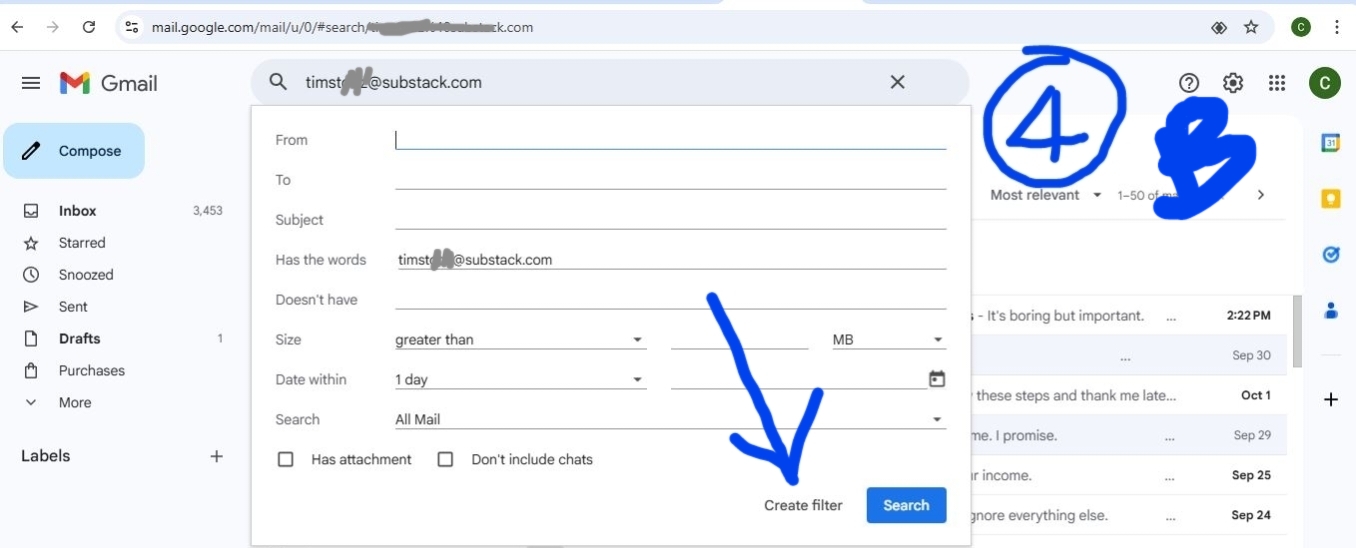
Confirm the Sender: The email address you searched should automatically appear in the “From” field of the pop-up box. This is the only field you need to fill for a comprehensive whitelist, as shown in the screenshot below.
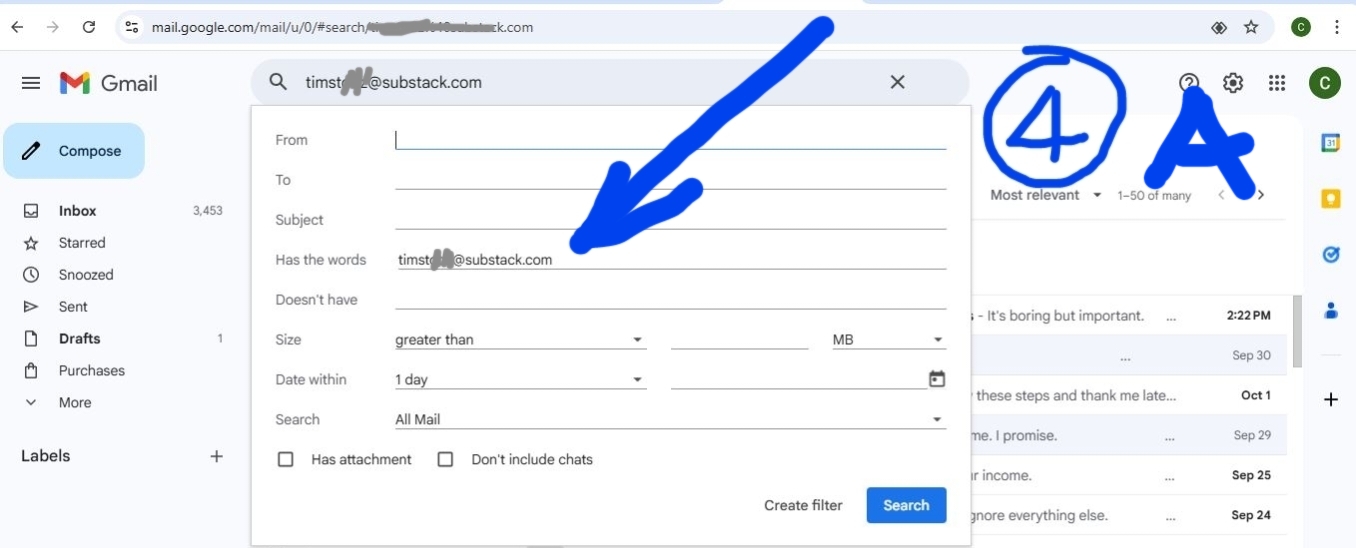
Do NOT Search: Do not click the blue “Search” button. Instead, click the small “Create filter” link in the bottom right corner of the pop-up box as indicated with arrow below.
Step 3: Set the Permanent Whitelist Rule (The Guarantee)
This is the most critical step, where you define the action the filter will take to bypass the standard spam and promotions folders.
Guarantee Delivery & Importance: In the final filter action menu that appears, check these two essential boxes:
“Never send it to Spam” (This guarantees it avoids the junk folder).
“Always mark it as important” (This helps surface the email in your general priority inbox).
Apply to Past Emails (Recommended): To ensure every past email from this sender is also pulled into your primary view, check the box “Also apply filter to matching conversations.”
Finalize the Filter: Click the final “Create filter” button to activate the permanent rule. As indicated [Marked] in this last screenshot below
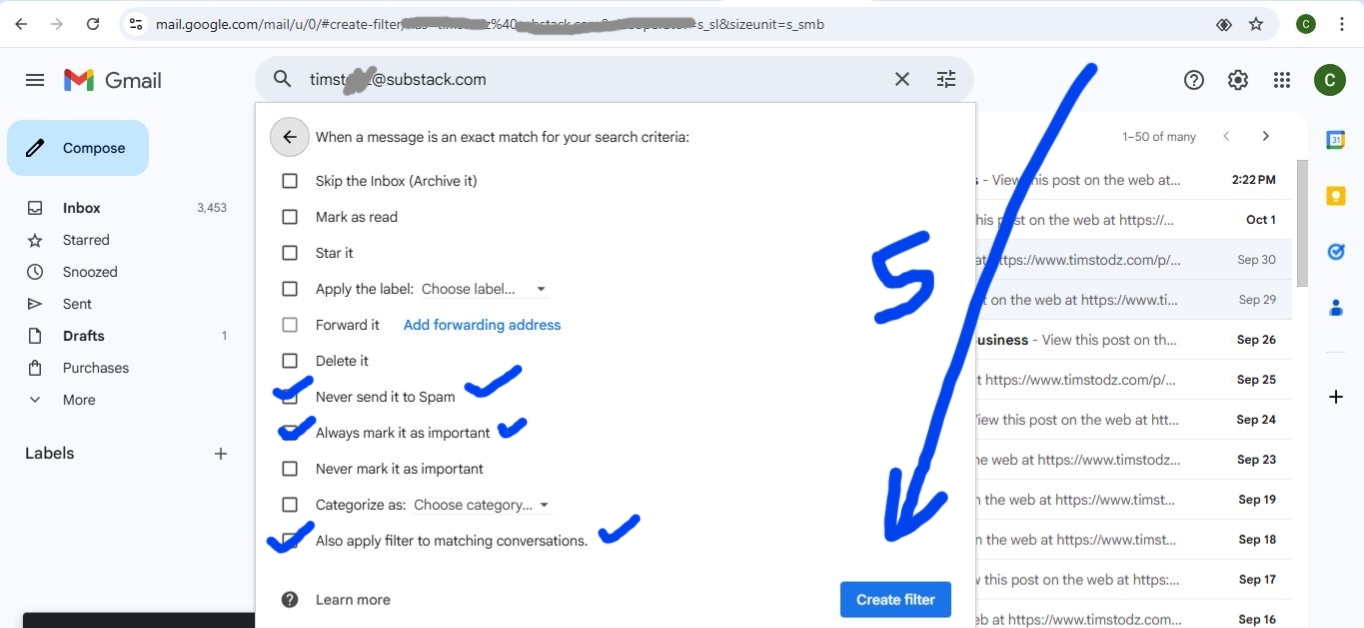
Once this is complete, any future mail from that sender will bypass all Gmail sorting algorithms and land directly in your Primary inbox, guaranteed.
Thus, Congratulations 🎉 you’ve done the hard work and already command Gmail to allow this particular sender email to keep getting delivered into your inbox anytime, any day. Create rules to filter your emails – Gmail is the good action to control your mail deliverability.
Mobile Whitelist Alternative (Faster but Less Robust)
While the desktop filter is the only way to create a permanent whitelisting rule, you can quickly train Gmail on your mobile device to stop marking a specific sender as spam or promotional.
Open the Email: Find and open a recent email from the sender you want to whitelist.
Open the Menu: Tap the three-dot icon (More Options) in the top right corner of the screen.
Use “Report Spam” to Find “Not Spam”: If the email is in the Spam folder, the menu will have the option to select “Report not spam.” This single action helps train Gmail’s algorithms to recognize the sender as legitimate, though it does not create the permanent filter like the desktop method does.
This breakdown uses excellent screenshots to create a robust and easy-to-follow guide for you! What do you think of absolute structure? Advanced Gmail filters for work or school
Finally: Your Inbox, Controlled
You have just completed the simple process of taking full control of your email deliverability. By implementing these easy steps to whitelist senders in Gmail, you have essentially provided Google’s filtering system with your own authoritative list of approved contacts. This is a foundational step in optimizing your professional workflow.
The benefit extends far beyond your own inbox. If you send emails for marketing or client communication, understanding this Gmail whitelist process is key to ensuring your valuable content reaches your audience. Why Your Emails Go to the Gmail Promotions Tab

![Read more about the article Google Mobile Security Hardening Features: The Results-Proof Wiring I Use [E.E.A.T Guide]](https://ccndigit.com/wp-content/uploads/2026/02/Google-Mobile-Security-Hardening-Features_-Results-Proof-Wiring-I-Use-E.E.A.T-Guide--768x768.png)