Published On: December 1, 2025 | Last Updated: December 1, 2025
Estimated Reading Time: 8 mins
Google Password Manager Setup: Proven E.E.A.T. Steps I Use for Maximum Security Tightening
The Hidden Cost of Complacency
Every single year, the digital world accelerates, but so does one constant: the threat of the data breach. You may have the best analytics tools, the most advanced marketing strategies, and highly secured client data, but all of it rests on a single, invisible foundation: your password security.
If you’re still using the same password for more than one critical account, or if you rely on simple, memorable phrases, you are leaving the front door of your professional life wide open. This isn’t fear-mongering; it’s a simple, avoidable risk that costs careers.
As a certified Google Digital Marketer, Google Analytics Certified.. professional dedicated to data integrity and cybersecurity best practices as explored in my Proprietary Cybersecurity Case Study , my approach to security is always layered.
The first, most critical layer of defense doesn’t require a subscription or a complex setup—it’s already built into the ecosystem you use every day: Google Password Manager (GPM).
I know that the idea of “security settings” can feel overwhelming, but securing your digital life should be accessible to everyone. In this E.E.A.T.-backed guide, I will share the exact, proven setup steps I personally use to maximize the protection offered by GPM.
By the end of this short, visual guide, you will know:
How to locate and activate GPM’s hidden security features.
The essential steps for running a password security checkup.
The major security gap that Google’s free tool leaves open (and how I close it with an essential upgrade).
Let’s just begin with turning your existing Google account into a robust first line of defense.
The E.E.A.T. Setup: Locating and Activating Google Password Manager (GPM)
The first step in securing your passwords is finding the tool itself. Many users know of GPM but don’t know how to access its dashboard to take full control.
Step 1: Navigating to the GPM Dashboard
The easiest way to reach GPM is directly through your browser or Google account settings.
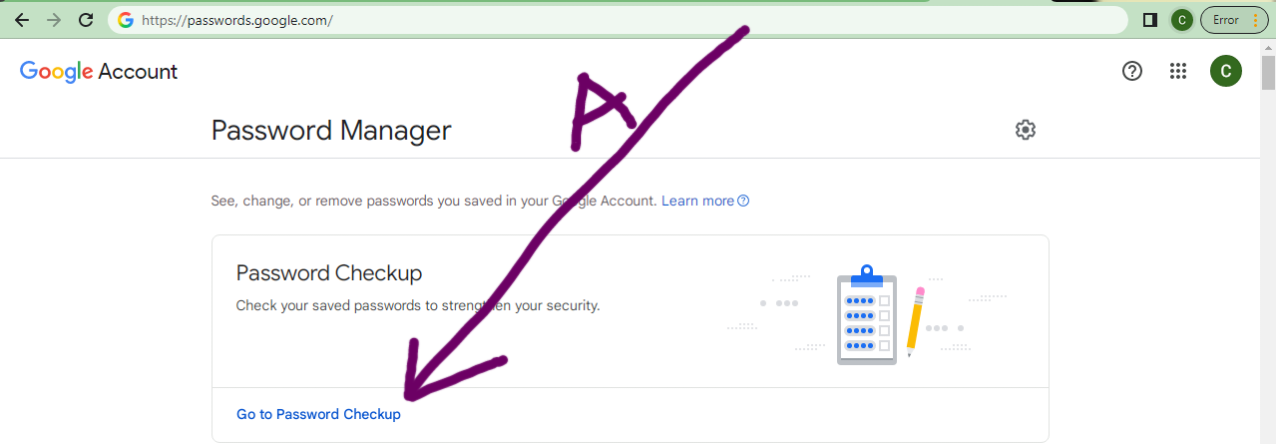
For Desktop: Open your Google Chrome browser, type passwords.google.com into the URL bar, and log in with your primary Google account. See screenshot- 1 below

For Mobile: Go to your device’s settings, find “Google,” then tap “Manage your Google Account,” and navigate to the “Security” tab. Scroll down to “Signing in to other sites.” See the two screenshot below

Step 2: Running the Immediate Security Checkup (The Quick Win)
This is the single most important action you can take right now. The Checkup tool instantly flags every password that is:
Compromised: Detected in a known data breach.
Weak: Too short or too simple to guess.
Reused: Used on multiple accounts (a massive vulnerability).
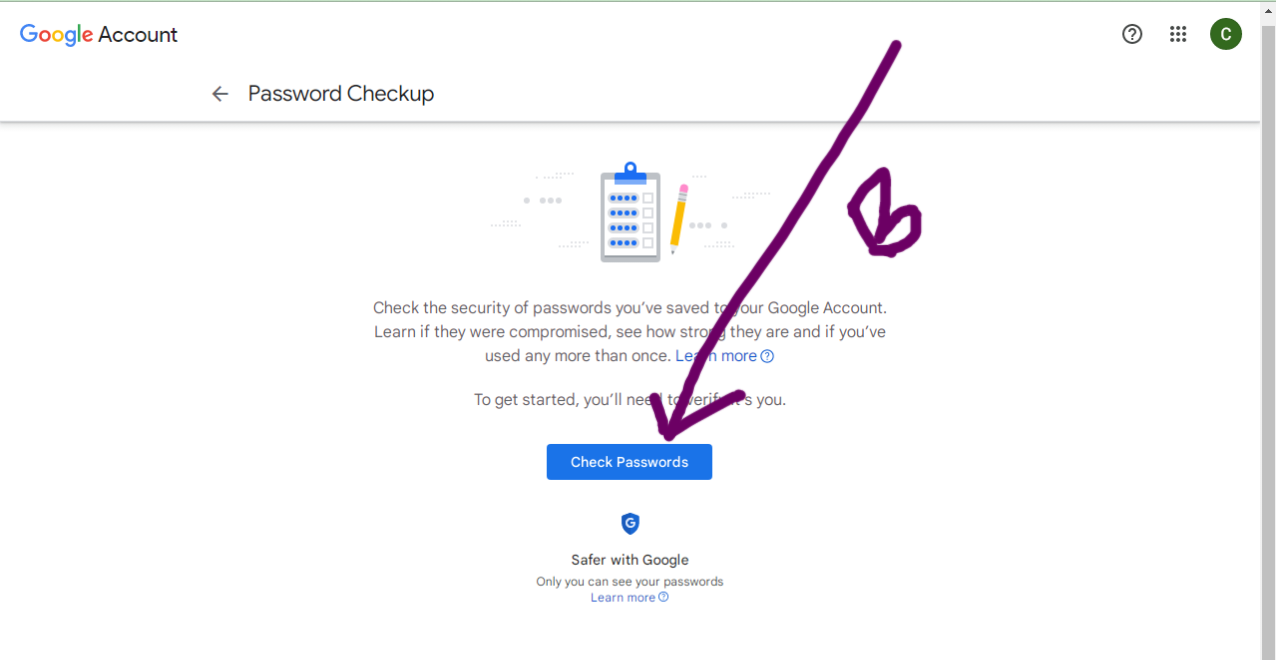
Action: Click the “Check passwords” button and review the results. Focus first on changing any “Compromised” passwords immediately. See screenshot – A and B below
Screenshot – B
Customizing GPM for Maximum Security and Convenience
Once you have reviewed the risks, the next step is optimizing GPM’s settings to automate protection and integrate smoothly into your workflow.
Step 3: Enabling Auto-Save and Auto-Sign-in
To ensure you never manually type a password (which bypasses security), you must enable these two features:
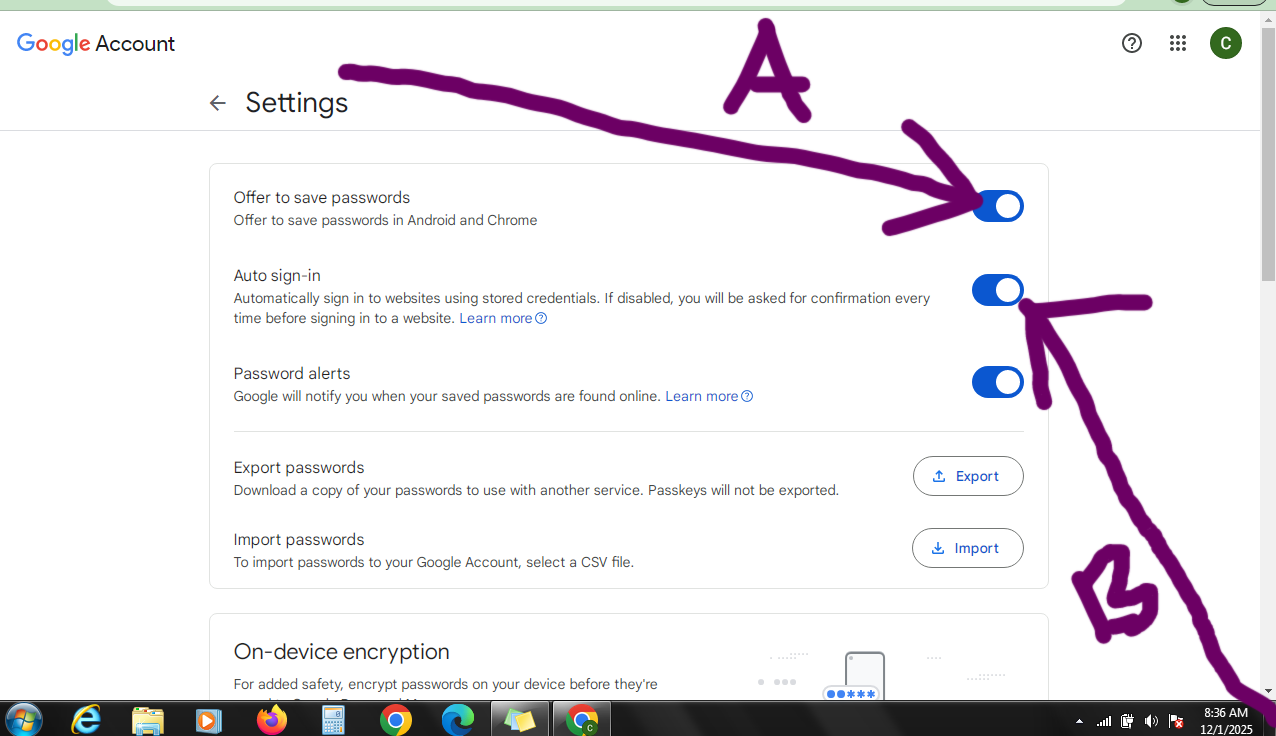
Offer to Save Passwords: Must be turned ON to ensure GPM prompts you to save every new login, including generated passwords.
Auto Sign-in: Turn this ON to remove the friction of logging in. It ensures you use the complex, unique password GPM stores. See the screenshot below
Step 4: The Core Security Tightening—Two-Factor Authentication (2FA)
Even the best password manager is only as secure as the Google account holding it. We must secure the account itself. Navigate to the “Security” section of your Google Account and ensure 2-Step Verification is active.
My E.E.A.T. Tip: Do not rely solely on SMS for 2FA. Use the Google Authenticator App or a physical security key for the highest level of protection.
The Global Mandate: Aligning Your Password Practices with World Authorities
Your personal setup steps are robust, but for true professional security, you must align your practices with the official guidance issued by global cybersecurity agencies. These bodies consistently highlight the same critical password habits.
Here is a collection of essential password security best practices from leading authorities across the US, UK, Canada, Australia, and the EU. This is the ultimate external validation for your E.E.A.T.
United States: CISA (Cybersecurity & Infrastructure Security Agency). CISA’s Guide to Using Password Managers and Multifactor Authentication
United Kingdom: NCSC (National Cyber Security Centre). NCSC’s Official Advice on Creating a Strong Password
Canada: CCCS (Canadian Centre for Cyber Security). CCCS Guide: How to Choose a Strong Password
Australia: ACSC (Australian Cyber Security Centre). ACSC’s 8 Essential Controls: Using Passphrases and 2FA
European Union: ENISA (EU Agency for Cybersecurity). ENISA’s Recommendations on Password Security
The Essential Advancement: Where the E.E.A.T. Layers Go Next
You have successfully implemented the first layer of high-level protection. Your Google-based passwords are now tightened to the maximum.
However, as a professional, my Proprietary Cybersecurity Case Study makes it clear: Relying on a single tool for your entire professional security creates a massive risk. There are two critical gaps Google’s free manager cannot cover:
Closing Gap 1: The Cross-Platform and Secure Sharing Deficit (NordPass )
Google Password Manager ties your security to the Google ecosystem. What happens when you use a non-Chrome browser, a specific client app, or need to securely share a login with a team member? The system breaks down.
For maximum security across all platforms (Mac, Windows, Firefox, specific apps) and for the secure sharing of credentials with team members, a dedicated, zero-knowledge vault is essential.
🔒 Essential Upgrade for Universal Security: NordPass is built specifically for this universal, cross-platform security, providing a dedicated digital vault that is independent of your browser.
Click here to secure your entire digital life with NordPass, the cross-platform vault I trust.
Closing Gap 2: The Connection Security Deficit (NordVPN )
A perfect password is useless if the connection you are using is compromised. Whether you are using a client’s public Wi-Fi, a coffee shop network, or even an unsecured home router, an attacker can intercept your data before it gets to GPM. This includes your bank, email, and social logins.
Protection requires encrypting the entire connection tunnel.
🛡️ Essential Upgrade for Connection Protection: The industry-leading NordVPN encrypts your internet traffic, hiding your IP address and making your data unreadable to anyone trying to intercept it.
Protect your network connection today: Encrypt your entire session with NordVPN.
Read Related – Mastering Complete Google Ecosystem
Conclusion and The Next Security Step
Congratulations. By implementing these steps, you have significantly reduced your digital risk.
Remember, maximum security is a combination of strong passwords ( GPM/NordPass ) and a fully encrypted connection ( NordVPN ). Use the free GPM features, but invest in the dedicated tools to protect your business.
Next in the Google Solution Hub: I’ll dive deep into the advanced Google Password Manager Features you’re probably overlooking. Stay tuned!

![Read more about the article MAKE FORTUNE ONLINE: A STEP-BY-STEP TO SELLING YOUR GOODS AND SERVICES ON AN ESTABLISHED E-COMMERCE PLATFORM WITHOUT PAYING [FOR FREE]](https://ccndigit.com/wp-content/uploads/2023/08/IMG_20230817_205350-1.jpg)
![Read more about the article CHATBOT AI: PROS AND CONS, PROMO [ FREE] & PAID EXPLAINED](https://ccndigit.com/wp-content/uploads/2025/06/chatbot.jpg)