Published On: October 23, 2025 | Last Updated: October 23, 2025
Estimated Reading Time: 9 mins
Website Fatal Error: 5+ Proven Solutions and Fixes I’ve Personally Used That Work
The worst feeling in the world for a website owner is navigating to your own URL and seeing the dreaded message: “There has been a critical error on this website,” or the generic “500 Internal Server Error.” It’s a full-stop panic button for your business—lost sales, lost authority, and the fear that your entire site is gone.
I’ve been there dozens of times. In fact, just recently, I dealt with a complex database crash caused by software and related faulty plugin installation as well . I fixed it, and I’m going to show you my exact, real-world, step-by-step process and 5 different means i have walked through to resolve this cataclysmic [ Fatal Error ].
This is not a list of vague advice. This is an E-E-A-T-driven guide based on years of direct experience, designed to walk you through the fixes I personally use to get my sites—and my client’s sites—back online in minutes, not hours.
A Fatal Error usually means one of two things: a PHP issue (a bad piece of code) or a Server issue (a resource limit). The key to a quick fix is systematic troubleshooting. Stop guessing, and let’s start fixing. You have the power to solve this now.
To this end, we shall walk through ;
Solution 1: Systematic troubleshooting [identifying and quick fix] as recently discussed above
Solution 2: The Core Database Fix (My Personal 5xx Database Crash)
Solution 3:Checking the .htaccess File for Syntax Errors
Solution 4: Increasing the PHP Memory Limit (The “Memory Exhausted” Fix)
Solution 5: PHP Version Mismatch
Let’s just get started with the real world experience, technical, practical and screenshot support to help you phantom these process while getting your problem resolve in a cinch
Solution 2: The Core Database Fix (My Personal 5xx Database Crash)
Fatal Error Cause: This is the more complex, but often necessary, fix. A database-related fatal error usually occurs when a software [ Code ] or plugin if you’re using WordPress leaves corrupted, conflicting, or incomplete tables in your database. This is a high-level fix that separates experts from beginners.
Goal: But i’m going to walk you through a real, expert recent fix. So, you don’t have to be panic about this problem again if you get into one.
Step 1 [ Fixing ]: Accessing the Database (The Expert’s Tool)
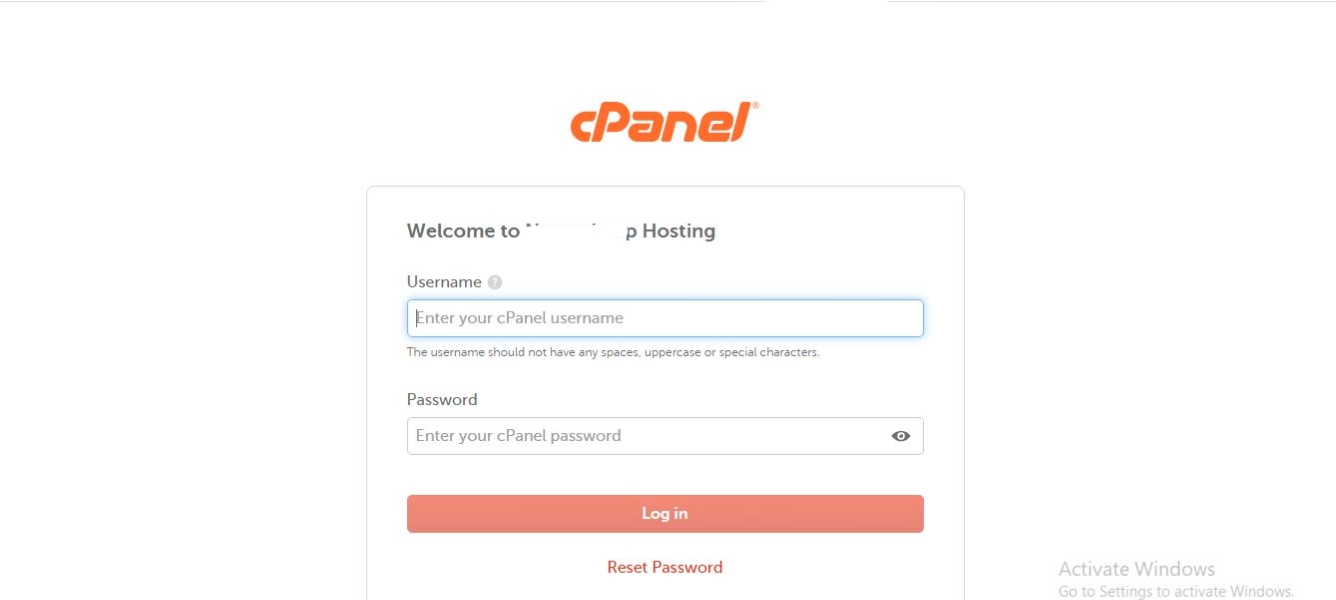
Log in to your hosting control panel (cPanel or similar) FTP client (like FileZilla). Just as seen in the screenshot below look of your control panel [Cpanel]
2. Open phpMyAdmin. Just as seen in the screenshot below
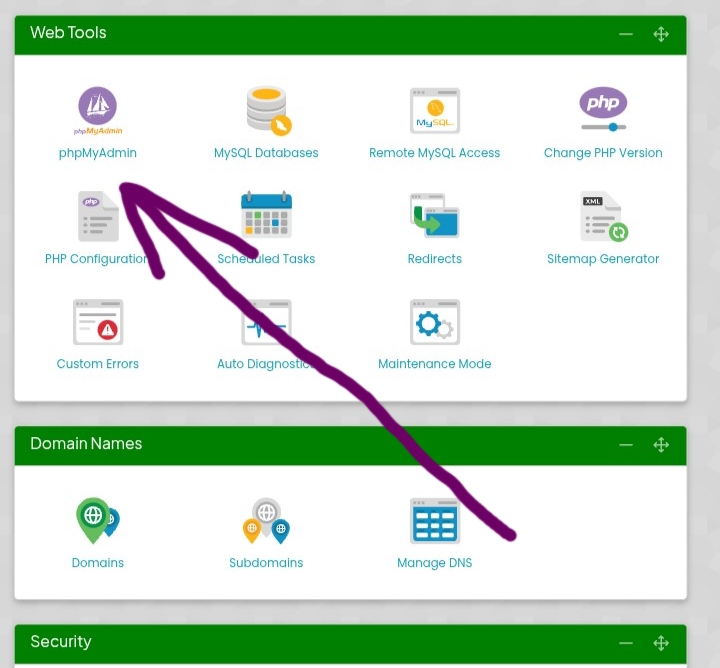
3. Select the database linked to your website: after you click the “PhpMyAdmin” as shown in the screenshot above, the list of Databases link 🔗 to your website will be displayed and you also click on the appropriate one for your website that has the “Fatal Error” you want to fix. No screenshot because databases are meant to be unique titles in different private formats [ unique ] even for their security purposes.
Step 2: The E-E-A-T Moment: Identifying the Problematic Tables
This section won’t be a bulk of screenshots because everything you’ll do here is also private but by properly following the instructions you’ll resolve it snappily.
1. Website Error Message: Use the initial error message you found on your website to treat the database issue ⚠️ in the PhpMyAdmin or go to the debug log feature in your hosting account, if enabled to find the name of the problematic software [ code ] or plugin if you’re using WordPress to know the precise table or things to tackle in the database you want to access through the “PhpMyAdmin” you’re instructed to click above. Below is the visual look of the “error log” menu you’re to click in your hosting account to determine precise software, code, table, or plugin assuming it’s WordPress to deal with in your Database about to open
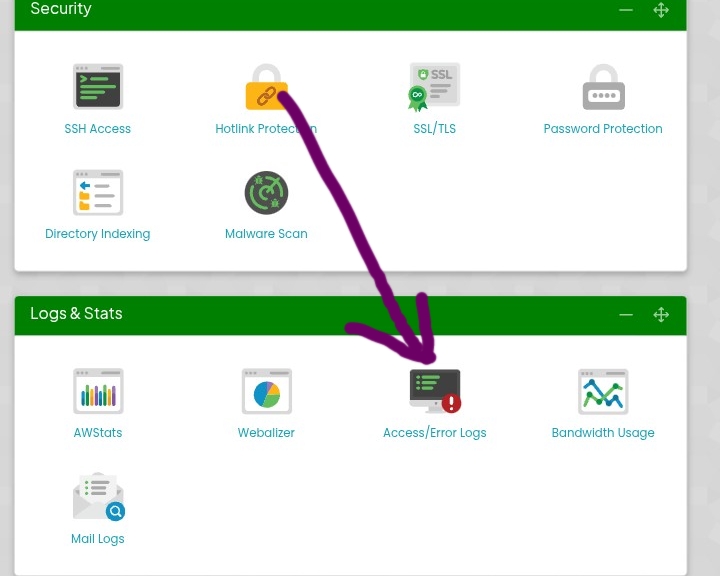
2. Scan your database tables for entries matching or similar prefixes): Now That you’ve known that precise table name that’s causing the conflicts [ Fatal error ⚠️ ] on your site through the ” Error Log” feature you’ll then head back to your database table you you earlier accessed through the “PhpMyAdmin” and then scan it so you can even eventually spot that culprit table your Error log ⚠️ pointed to you [mentioned ] e.g table starting with that name stated in your error log ⚠️ and if you’re using a WordPress site the popular one we can have (e.g., tables starting with wp_woocommerce_… or similar prefixes ) as WordPress is mostly started with the wp_Plugin Name etc
3. Cautionary Note: Hello, rushing to delete the wrong table if you’ve eventually found it can permanently ruin your site. Thus, this step requires a full backup before proceeding. There’s a backup feature in your hosting account as well, every hosting account usually has this. Please, use it for this operation. See the backup feature example below.
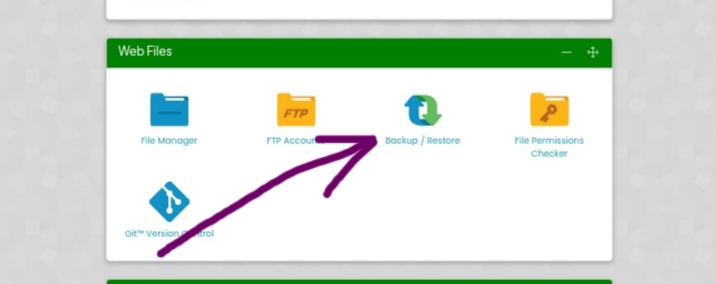
Step 3: Deleting and Reinstalling
Select the problematic tables and use the “Drop” command to safely remove them. That’s after you’ve successfully achieved the full backup.
Return to your site Dashboard or precisely WordPress Dashboard and reinstall the software/plugin (if necessary). The clean installation will generate fresh, uncorrupted tables, resolving your Website “Fatal Error” conflict and restoring your site to normal status.
Solution 3: Checking the .htaccess File for Syntax Errors
Fatal Error Cause: An accidental typo or incorrect directive in the .htaccess file can cause a 500 server error, as the server can’t process the instructions.
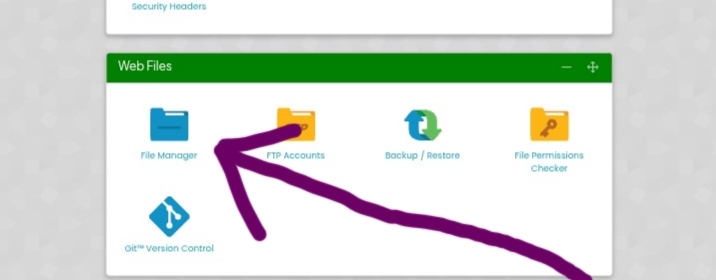
1. Access your site’s root directory via File Manager/FTP. Still in your hosting account, see screenshots below of your “File Manager”
2. Locate the .htaccess file: See the screenshot below to help you avoid confusion with this feature in your hosting account
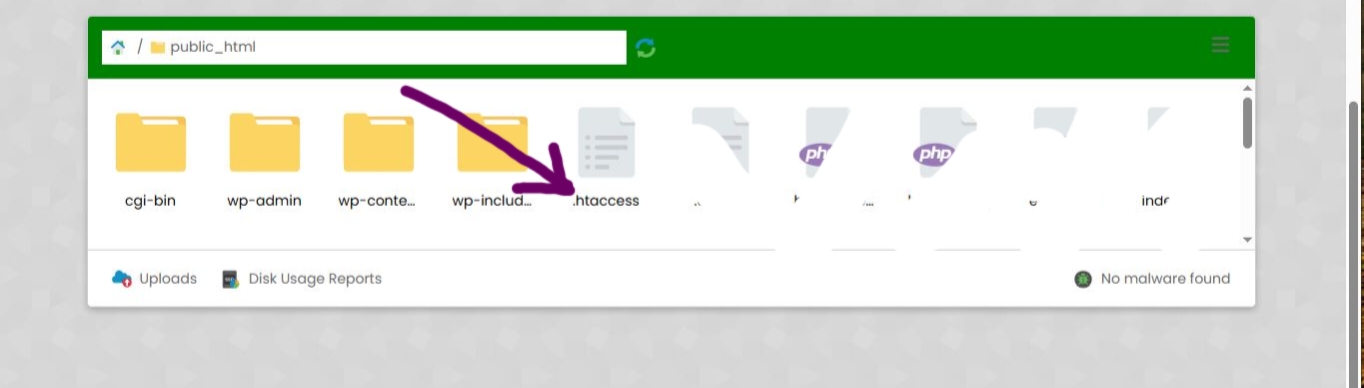
3. Rename the file to htaccess_old.
Why this works: This temporarily deactivates the file. If your site comes back, you know the .htaccess file was the issue.
4. If the site loads, go to Settings > Permalinks in your WordPress dashboard and click Save Changes twice. This will generate a new, clean .htaccess file. As seen in the screenshot below
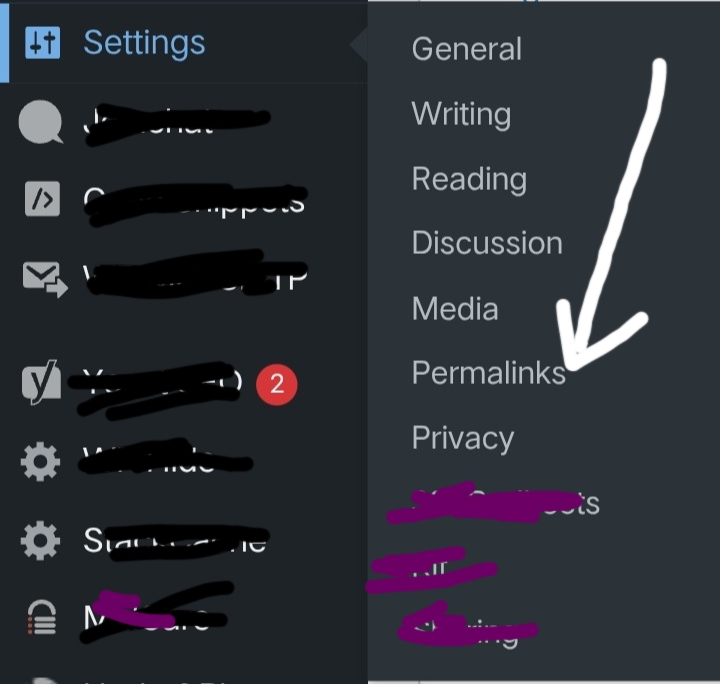
Solution 4: Increasing the PHP Memory Limit (The “Memory Exhausted” Fix)
Fatal Error Cause: The error message: “Fatal error: Allowed memory size of X bytes exhausted.” This means a script (usually a software, plugin or theme) needed more power than your host allocated. So, If you’re experiencing a “Memory Exhausted” error, you can learn how to increase the PHP Memory Limit (usually to 256M or 5xxM etc) in your wp-config.php file.
Access the wp-config.php file in your site’s root directory. As seen in the screenshot below
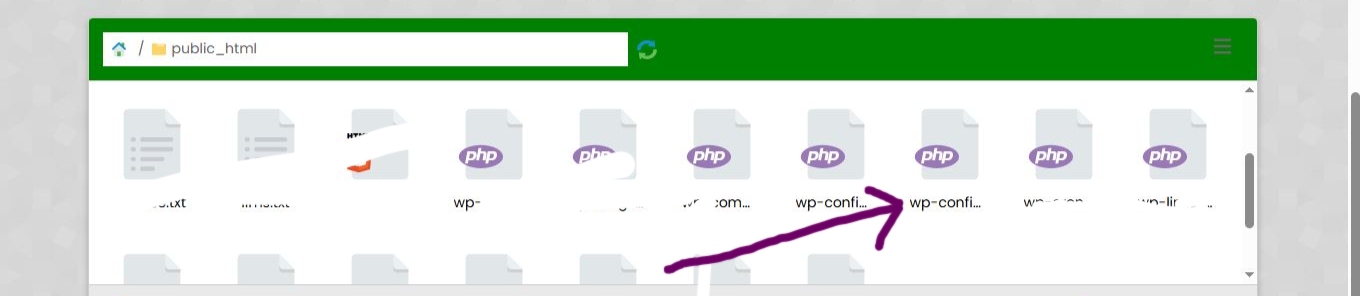
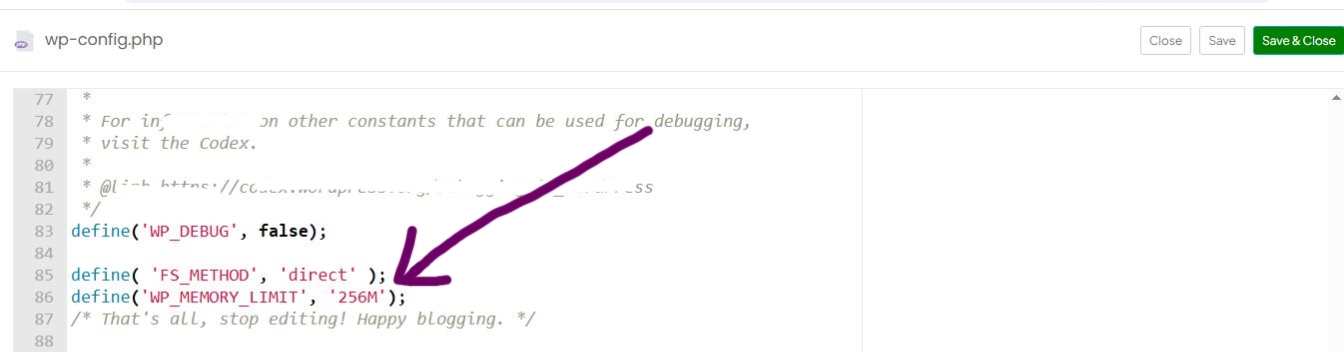
2. Add the following code snippet just above the line that says /* That’s all, stop editing! Happy publishing. */:
PHP
” define(‘WP_MEMORY_LIMIT’, ‘256M’);” as seen in the screenshot below
Save the file and check your site.
Solution 5: PHP Version Mismatch
Fatal Error Cause: Using outdated PHP (e.g., PHP 7.4) when a key plugin requires a modern version (e.g., PHP 8.1+) can cause fatal errors due to deprecated functions.
Log in to your hosting control panel.
Find the PHP Manager or MultiPHP Manager tool.
Set your site’s PHP version to the latest stable version (usually 8.x).
Therefore, Always ensure your server is running the latest stable PHP version (8.x or higher) to prevent fatal errors caused by deprecated functions.
The Key E-E-A-T Takeaway: Proactivity Over Panic
When a Fatal Error hits, the difference between minutes of downtime and hours of panic is having a proven, systematic process.
The solutions I’ve shared here are not theoretical—they are the exact, tested fixes I have personally applied to my own properties, including the complex database recovery from a recent plugin crash. I know they work because I rely on them to keep my business running.
Don’t just fix this one error; prevent the next one.
My final advice as an experienced digital architect is simple:
Always Backup: A quality backup service is your only insurance policy. The first step to preventing major damage is investing in a high-quality full backup service—your only true insurance policy.
Test in Staging: Never install a new, unproven plugin on a live site. Use a staging environment first.
Prioritize Quality: Choose themes and plugins from reputable, well-supported developers to minimize code conflicts.
By applying the 5+ solutions detailed in this guide, you now have the expertise to diagnose and fix nearly any Fatal Error with confidence. Stop wasting time waiting for support, and start mastering your own website health.